Asset Bundle Creation
In your Unity Void Crew Samples Project, you can find various example assets. These are added to the game at runtime by exporting them as Unity Asset Bundles.
Each asset bundle will need to be located in its own folder, which must contain all dependencies (textures, meshes, audio, prefabs). What this means is that everything referenced by your assets (textures, materials, etc.) must be in within the folder for that asset bundle. No references to outside that folder will be kept when exported.
You can include multiple assets per asset bundle. Each prefab you want your mod to load at runtime must have the Void Crew Asset component at its root.
To export your asset:
Select the folder containing the asset and its dependencies (such as “mod_banana”)
In the toolbar at the top of Unity, select “Void Crew” and in the dropdown press Export Selected
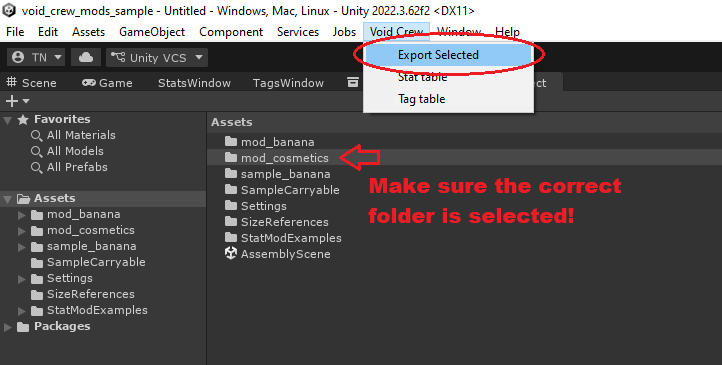
You will find your exported asset at the root of your Unity Project folder, in a folder named “Exported Assets”. This should open automatically after exporting completes.
There will be two files both named after the folder you used to export the asset bundle, with a “.metem” and “.manifest” filetype.
The “.metem” file is what you need to include in your mod. The “.manifest” file is not needed.
Note: if you cannot tell the files apart, you need to enable file extensions in Windows explorer.
Size References
If you want to create your own 3D assets, you will likely want some references for shape and scale.
In the sample project
we have included reference FBX files that you can use in for example Blender and Unity.
Void Crew Asset
This is the base component needed for the asset to be loaded into the game. It has the following fields:
Name: Name of the Asset
Description: Description of the asset
Icon: Icon for the asset. The icon’s
Texture Typeshould be set toSprite (2D and UI).
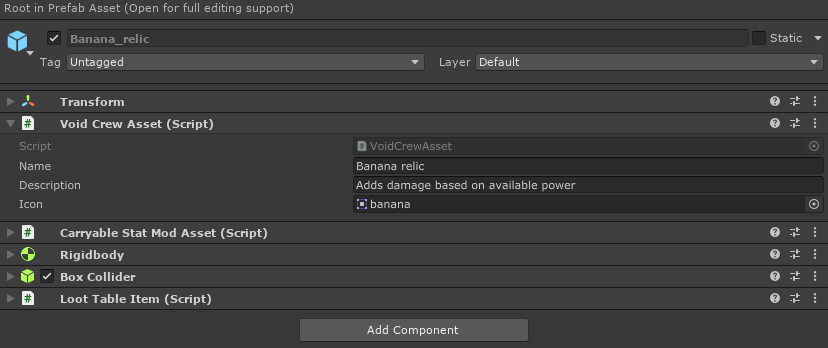 These fields are used to populate the asset’s Context Info in the game. Context info is the data structure used to fill out the tooltips you see when looking at items or hovering over them in UI.
The name of the asset will also be used for information regarding mod compatibility and other debugging info. So even assets that don’t have tooltips should at least still have a name.
Note for Cosmetics: Cosmetics use scriptable objects instead of prefabs for the assets. So the above fields are found on the cosmetic objects themselves instead of the Void Crew Asset component.
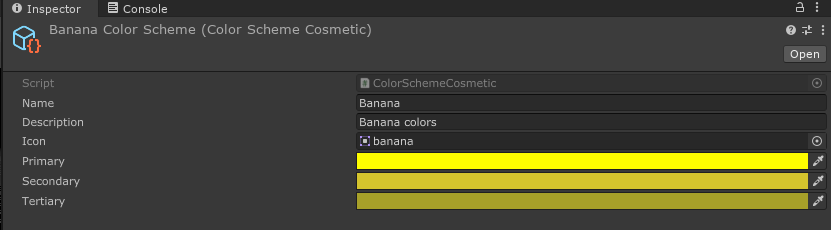
You can include rich text tags in the name and description to add additional styling. Check this link to see supported rich text tags for our version of Unity.
Never modify examples
It is IMPORTANT that when you make new assets that you either:
Duplicate another asset and work on the duplicate
Make a new asset from scratch, and add the necessary components if it is not a scriptable object.
Never make your assets by modifying other examples or templates provided by us or other modders. Doing so will mean they have the same ID (GUID) in their metadata, which will cause problems for Void Crew loading the assets.
By duplicating or making the asset from scratch a new ID will be generated automatically, which ensures your assets will not conflict with assets created by others. Additionally, by ensuring your assets keep a unique ID you will also be able to update the mod with the assets and the game to still know it is the same asset (so for example cosmetics stay equipped).
Types of Void Crew Asset Bundles
You can read more about how to create different types of asset bundles in the below chapters.
Carryables Learn about how to create custom weapon mods and relics.
Cosmetics Learn about how to create custom cosmetics.
Ship and Hub Visuals Learn about how to create custom visuals for the Hub and different player Ships.